
Cloud quickstart
Create a workspace, add knowledge, and test your first channel.
Go from sign-up to a first AI-drafted answer on the hosted version of answerLoops. Most of the wait is your first knowledge import finishing.
What you need
A Google account to sign in, nothing else to pay for: the 14-day trial needs no card, a page or file with your current help content, and permission to install or configure an integration on the platform you want to connect.
Start the 14-day trial
Open answerLoops pricing and select Start 14-day free trial. Sign in with Google. If you are new, a short step follows: tick the box to accept the terms of service, optionally say it is OK to email you product updates, and select Start my free trial. There is no card and no checkout, and your trial starts right then. If you already have an account, signing in simply takes you back to your dashboard.
| Plan | Monthly | Annual, per month | Deflections per month |
|---|---|---|---|
| Standard | $49 | $39 | 500 |
| Pro | $149 | $119 | 3,000 |
| Enterprise | $499 | $399 | Unlimited |
Every feature is unlocked for the whole trial, with the same access as Enterprise. When the 14 days end you choose a plan from the table above and add a card to continue. AI usage is included, so you can seed your knowledge base and see answers drafted without a model-provider key. Connect your own provider in Settings → AI Model any time to remove the limit; your provider then bills that usage directly. See Billing plans and Billing for how allowances and included usage work.
What you should see: after you sign in you land in a short setup wizard with four steps: Workspace, Connect, Seed KB, and Go live.
Name your workspace
Enter a Workspace name, such as your community or product name, and select Continue →. Your team uses this name to recognize the workspace.
What you should see: the wizard moves on to Connect your community.
Connect a channel
The wizard offers Discord, Slack, GitHub, and Website Widget. Pick one and follow the prompts, or select Skip for now — connect later in Integrations. Every other channel is connected from Integrations in the sidebar, where each channel has its own tab.
- Discord and Slack
- Discourse and Circle
- GitHub
- Telegram, Email, and Google Chat
- Website widget
You need permission to install or configure the integration on that platform. Select the channels, spaces, or repositories answerLoops should monitor.
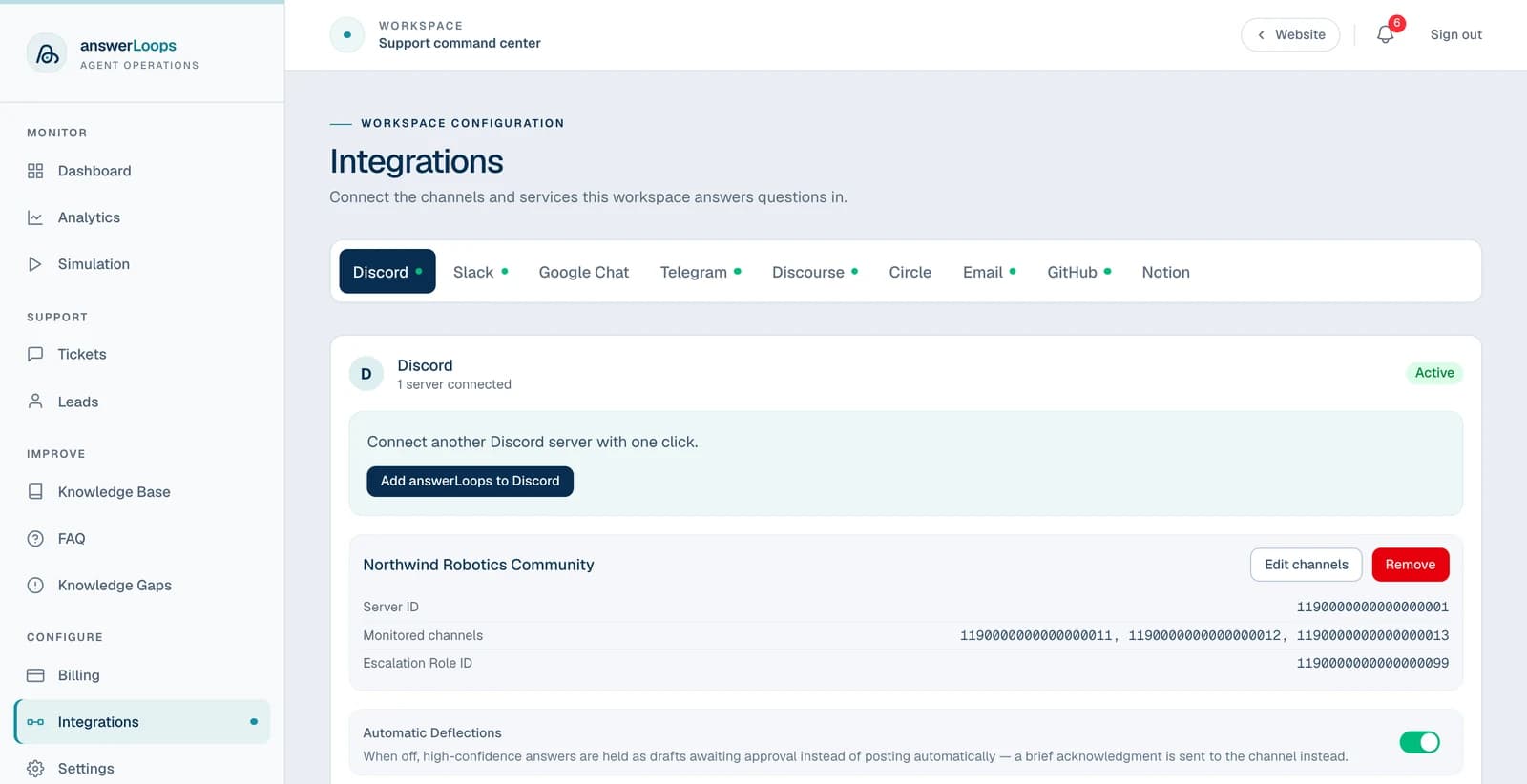
What you should see: the channel's tab on Integrations shows it as connected, with the channels or spaces you chose.
Add knowledge
In the Seed your knowledge base step, choose Upload file (PDF, DOCX, MD, TXT, or CSV, up to 10 MB) or Crawl a URL (a public docs page or site root, then Import URL). You can also skip it and add content later from Knowledge Base in the sidebar, where you can also connect GitHub or Notion content.
Wait for the import to complete. The wizard reports how many articles or chunks were added.
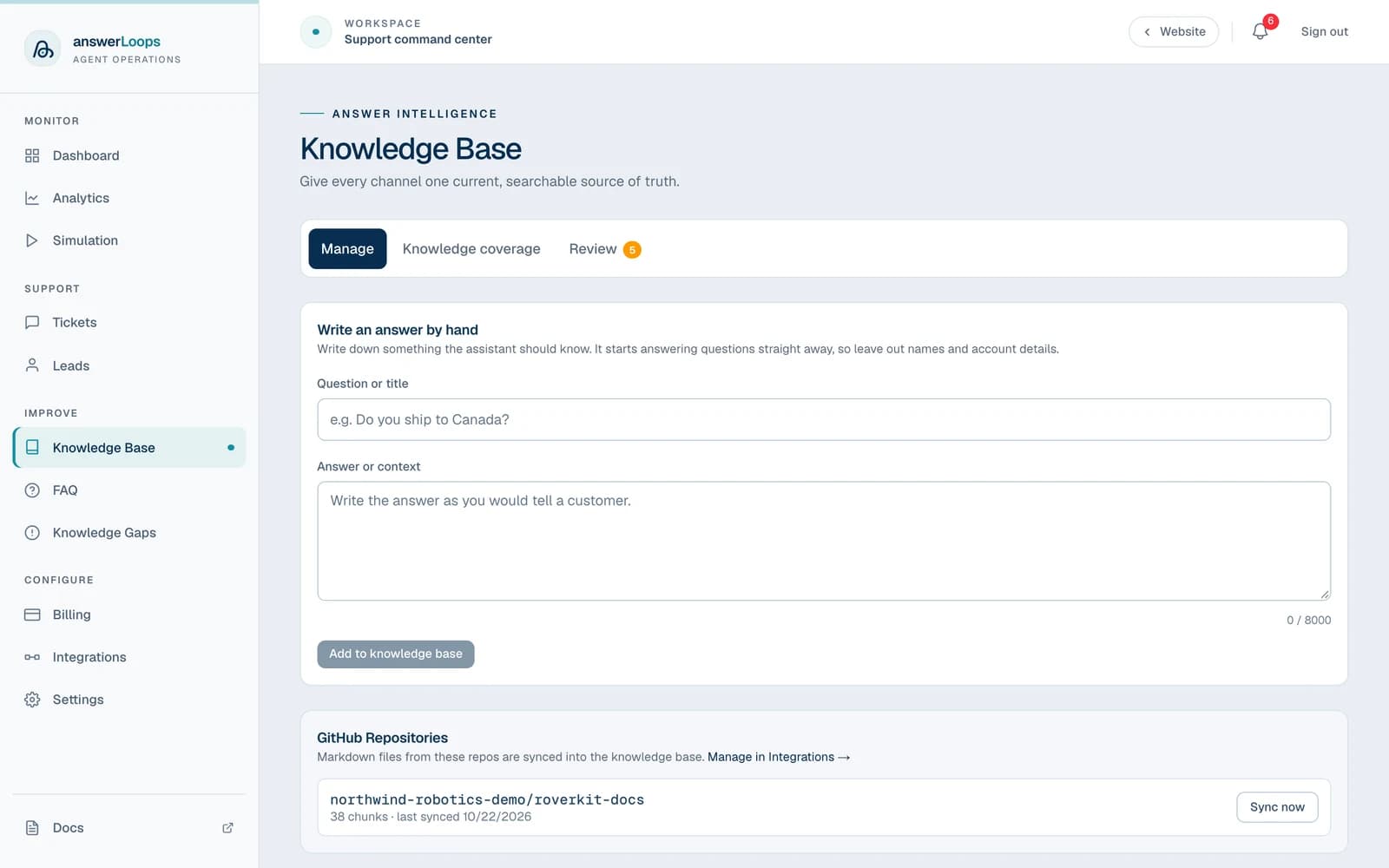
Notion content is initially unpublished. Review it and publish the intended material before using it for customer answers. See Knowledge Base.
What you should see: a confirmation with the number of articles added, then the You're all set! screen. Select Go to dashboard →.
Inspect a draft
Ask a question covered by the imported content in your connected channel. It appears as a ticket under Tickets. Open the ticket and check the draft, including whether it answers the question and matches the source.
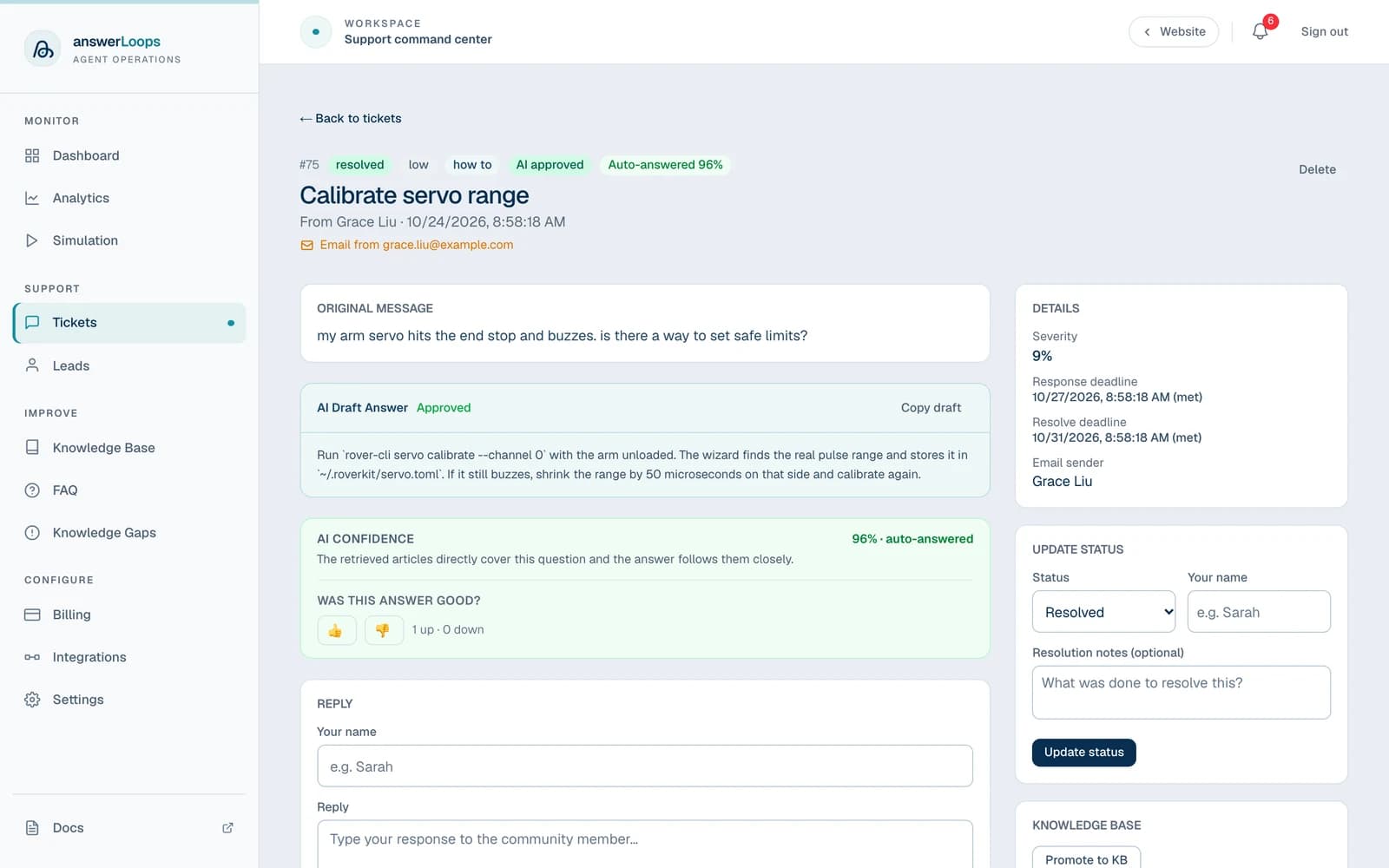
Automatic replies are off by default. A question appearing in the queue without a posted reply can be expected behavior. If no draft appears, open the ticket: a notice where the draft would be says why, for example that you've reached your AI limit.
What you should see: a ticket with your question, a draft answer, and a confidence panel. A low-confidence draft is held for a person instead.
Choose reply settings
Open the channel's tab on Integrations and turn on Automatic Deflections for the channels you are ready to automate. A draft must pass the configured confidence threshold (0.8 by default) before it qualifies. If the source material is missing or inaccurate, correct it before changing the threshold.
Invite teammates through Settings → Team, and review AI Model and Billing Plans before launch.
What you should see: the channel's tab shows Automatic Deflections as on, and qualifying questions are answered without waiting for a person.
Test before you automate
A confidence score is an AI assessment, not a guarantee. Review several drafts from real questions before turning on Automatic Deflections.