
Billing
Manage your plan, usage, and payment method from the Billing page.
The Billing page shows which plan your workspace is on, how many automatic answers you have used this month, and where to upgrade, change plan, or update your card. Open it from Billing in the Configure group of the sidebar. Everyone in the workspace can view it; starting an upgrade needs an owner or admin, and managing the subscription needs the owner.
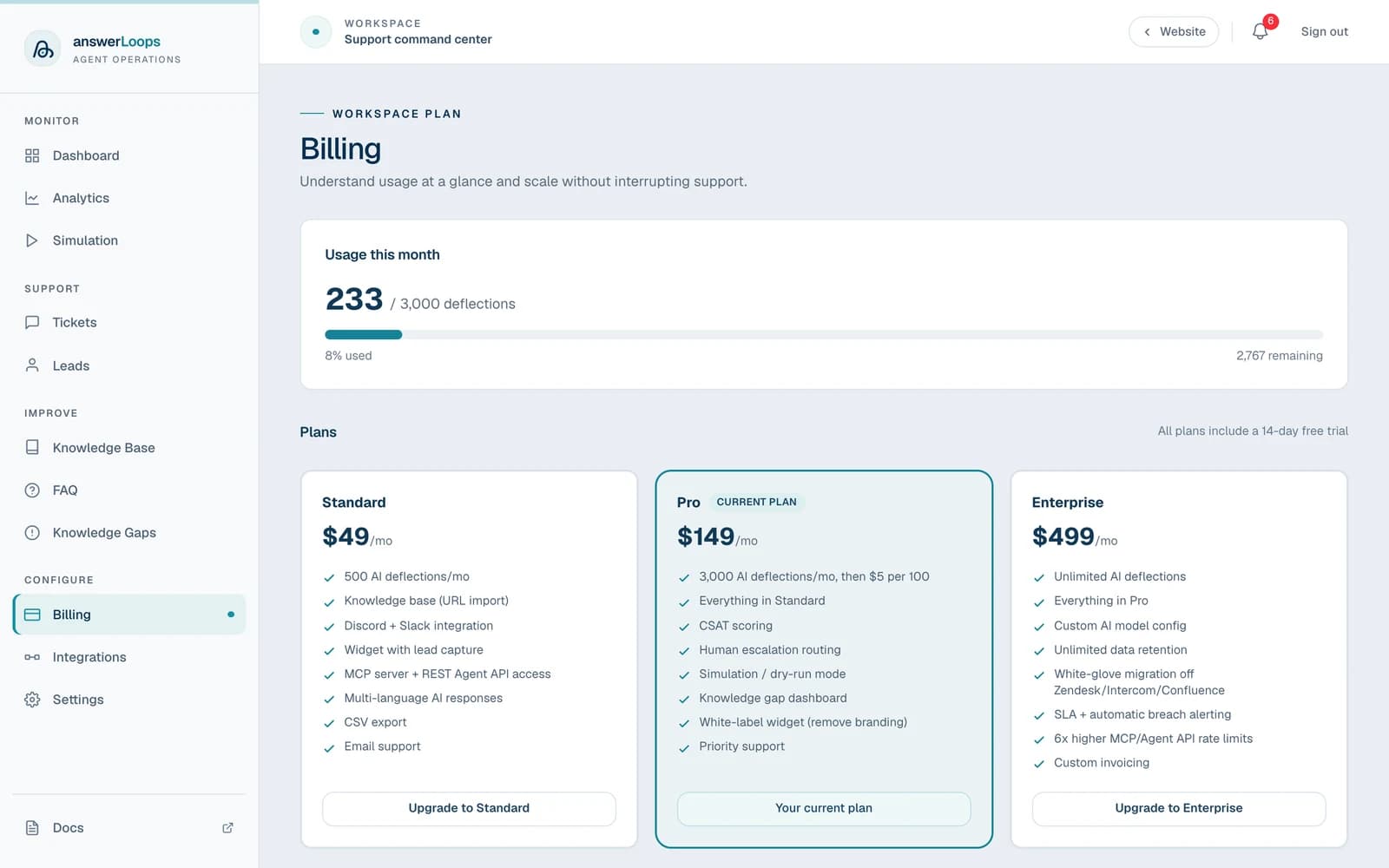
The screenshot shows a demo workspace. Its usage figures are sample data.
Plans at a glance
All hosted plans include the full AI pipeline and begin with a 14-day trial. Higher plans add scale, insight, and support.
| Plan | Price | Included deflections per month | At the limit |
|---|---|---|---|
| Standard | $49/mo | 500 | Hard cap: AI auto-answering pauses |
| Pro | $149/mo | 3,000 | Soft cap: answers keep going out, $5 per 100 over |
| Enterprise | $499/mo | Unlimited | No limit to reach |
A deflection is a question the AI answers on its own, with confidence above your threshold, without a person stepping in. High-confidence standalone answers generated through the MCP server or Agent API count too. Annual prices and the full feature comparison are in Billing plans and on the public pricing page.
Track your usage
Usage this month shows deflections used against your plan's limit, resetting at the start of each calendar month. Once you pass 80%, a warning banner appears with a one-click upgrade to the next tier, so you see the limit coming instead of being surprised mid-month.
What happens at 100% depends on your plan:
- Standard (hard cap): AI auto-answering pauses until the next calendar-month reset, and new questions route to your human queue instead. There is no Standard overage charge.
- Pro (soft cap): answers keep going out. Usage past your included 3,000 deflections is billed at $5 per 100 (rounded up to the next 100), and the usage bar shows how far over you are.
- Enterprise: unlimited. The page shows your count with no limit.
Self-hosted deployments are not metered. The Billing page says "Self-hosted — no usage limit" and shows no plans.
Change your plan
Pick a plan
Click Upgrade to [plan] on any plan card, or use the upgrade button in the warning banner.
Complete checkout
You are taken to a secure checkout page. Upgrades take effect immediately, and Stripe prorates the difference.
Downgrade or cancel from the portal
Click Manage subscription → to open the Stripe customer portal, where the owner can update the payment method, change plan, or cancel. Downgrades take effect at the end of your current billing period.
If a payment fails, the page shows a Payment past due badge. Choose Manage subscription to add or update a payment method. A subscription set to cancel shows a Cancels badge with the date.
Start with a trial
Every new hosted account starts with a 14-day free trial that includes every feature. No card is required, and nothing is charged. The trial banner shows the days remaining, and you can subscribe at any time from a plan card. When the trial ends, access stops until you choose a plan and add a card at checkout, and your card is charged when you confirm. Each person gets one trial. Your workspace and knowledge base are kept while you decide.
Reminders before it ends
- Welcome email. When you accept the terms and the trial starts, the workspace owner gets a welcome email.
- Dashboard banner. For the last three days, a banner across the top of the dashboard shows how many days are left, with a Choose a plan button that opens checkout. It turns red on the last day.
- Two emails. The workspace owner is emailed three days before the trial ends and again one day before. Each has a Choose a plan button that opens checkout directly, signing you in first if your session has lapsed. Each email is sent once.
These are notices about your trial, so they are sent whether or not you opted in to product updates.
Included AI usage
You do not need your own AI provider key to use answerLoops on a hosted plan. Triage, drafting, confidence grading, and knowledge-base processing (uploads, imports, syncs, and search) are included up to a limit, during your trial and every month on a paid plan. This is separate from your plan's deflection limit above.
- Separate limits: answers and knowledge-base processing each have their own limit, so a large import never uses up what your answers need.
- Warning: at 80% of either, a banner across your dashboard lets you know.
- At the limit: that part of AI pauses until you add your own provider in Settings → AI Model or, on a paid plan, until the next month starts. The trial's included usage does not reset. Tickets keep arriving either way.
- Reset: the paid-plan limit resets at the start of each calendar month, for monthly and annual plans alike.
Your own provider removes the limit for what it handles, and your provider bills that usage. An OpenAI key covers both answers and knowledge-base processing. Other providers cover answers only, so knowledge-base processing stays on included usage until you also add an OpenAI embedding key under Embeddings. See AI Model for the full guide.
This does not apply to self-hosted deployments, which always use your own configured key, or your own environment's key, from the start.
Delete your workspace
The workspace owner can delete the whole workspace from Settings → Danger Zone with Delete workspace…. You are asked to type the workspace name to confirm, so it is never a single click.
Deleting takes effect immediately:
- Your Stripe subscription is cancelled, with no further charges.
- Everyone is signed out and access to the workspace is revoked.
Your data (tickets, knowledge base, integrations, API keys) is kept for 30 days in case this was a mistake. Signing back in during that window shows a Restore my account option instead of the normal dashboard, available to the owner. After 30 days, everything is permanently deleted and cannot be recovered.