
Tickets
View, triage, and reply to support tickets from every connected community platform.
Every question posted in a channel you have connected becomes a ticket: one record that follows the question from first contact to resolution. answerLoops reads the question, categorizes it, drafts an answer from your knowledge base, and keeps every reply, status change, and AI decision in one place, so your team never has to hunt through Discord, Slack, email, and GitHub separately.
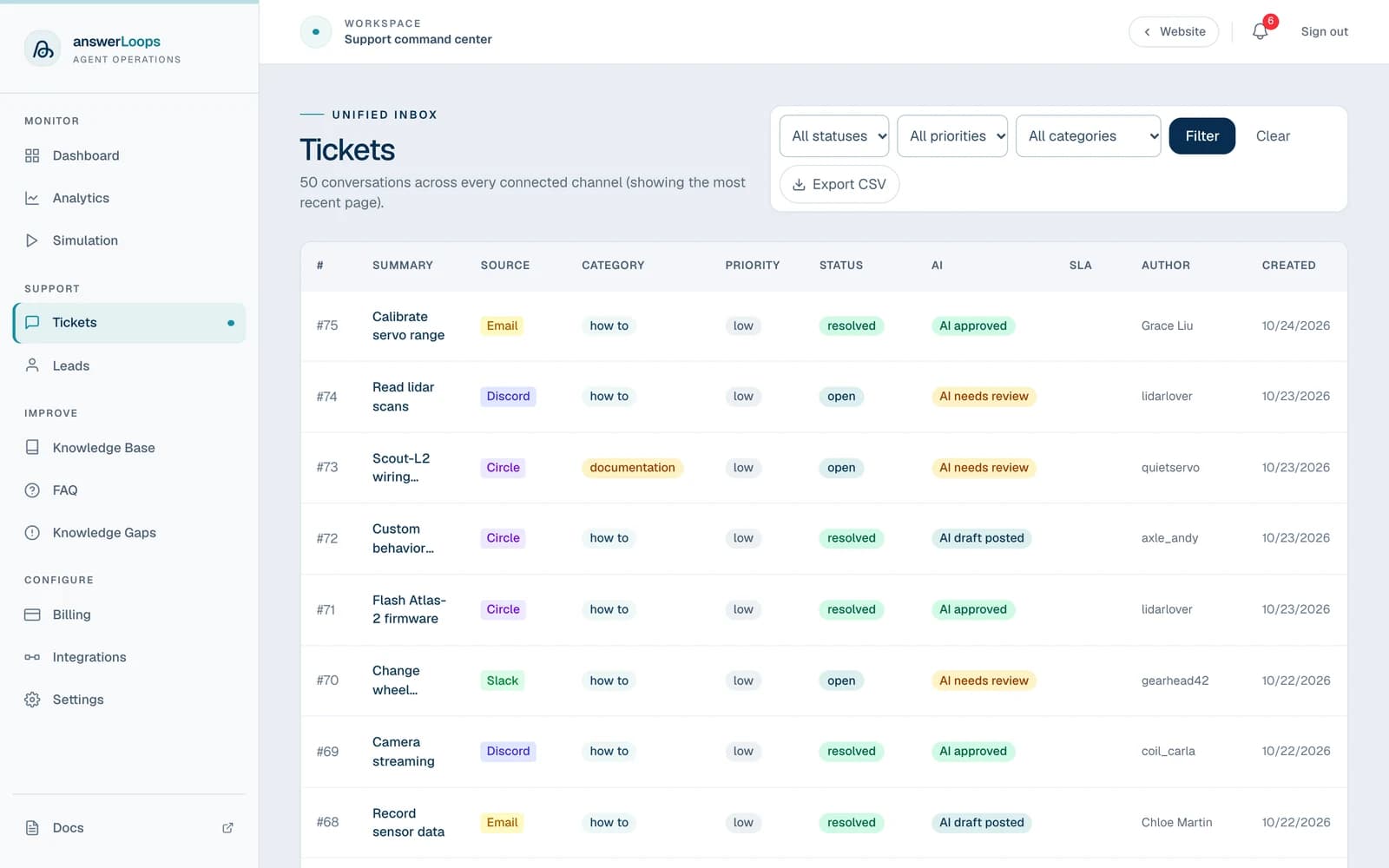
Find the tickets that need you
The Tickets page is a single inbox across every connected channel. Each row shows:
| Column | What it shows |
|---|---|
| # | Your workspace's ticket number |
| Summary | AI-written one-line summary of the question. A New activity badge appears under it when the customer has written since your team last opened the ticket |
| Source | The platform the question came from |
| Category | The AI's classification (see categories) |
| Priority | critical, high, medium, or low |
| Status | Where the ticket is in its lifecycle |
| AI | What the AI did with it (for example, AI needs review or AI approved) |
| SLA | Shows SLA breach in red when a response or resolution target has been missed; blank otherwise |
| Author | Who asked |
| Created | When the original message arrived |
The list shows the 50 newest tickets at a time. Select Load more at the bottom for older ones.
Filter the list
Use the dropdowns at the top of the page, then press Filter:
- Status: Open, In Progress, Resolved, Closed, or Duplicate
- Priority: Critical, High, Medium, or Low
- Category: Bug, Feature Request, Documentation, How-to, or General Question
Two more controls sit beside them:
- Sort: Newest first orders by when the ticket was created. Latest activity orders by the most recent message on the conversation, so an old ticket with a fresh reply comes to the top.
- New activity: tick it to show only tickets where the customer has written since your team last opened them.
Filters stack, so you can combine them. Clear resets the list.
Selecting a dashboard stat card opens this page with a matching card filter (Auto-Answered, Needs Review, AI Drafts Pending, or SLA Breaches). A "Filtered by" label appears above the list and stays in place when you change the dropdowns and press Filter. Select Clear card filter to remove only the card filter.
Know when a customer replies
A customer can reply on a ticket that is days or weeks old, so a reply on any ticket, old or new, is announced in four places and goes quiet once someone has read it.
- The bell in the top bar lists your workspace's recent notifications, newest first. Each one says who replied, on which ticket and on which channel, with a short snippet, and links straight to that ticket. Unread ones are marked with a dot. Mark all read clears the count.
- The Activity panel on the dashboard lists the tickets with replies your team hasn't seen, most recent reply first.
- A "New activity" badge on the ticket's row in the list, and the New activity filter and Latest activity sort described above.
- A push notification, if your team has turned on browser notifications. It names the ticket number, who replied, and the channel, with a snippet, and opens the ticket when clicked. Replies on the same ticket replace each other instead of stacking.
Opening a ticket marks it seen: its notifications are read and its badge and Activity entry go away. The same is true for everyone on your team, since a ticket your colleague already read doesn't need a second look. A later reply starts the cycle again.
Tickets that existed before this was added start out as seen, so your history doesn't appear as new activity.
Where tickets come from
The Source badge identifies the platform. Badges are consistent across the app:
| Platform | Badge label | Color |
|---|---|---|
| Discord | Discord | Indigo |
| GitHub | GitHub | Gray |
| Slack | Slack | Green |
| Telegram | Telegram | Sky |
| Discourse | Discourse | Orange |
| Circle | Circle | Violet |
| Yellow | ||
| AI agents using the Agent API | Agent | Brand blue |
Ticket statuses
| Status | Meaning |
|---|---|
open | New ticket, not yet handled |
in_progress | A team member has replied, or moved it here |
resolved | Answered; can be promoted to a knowledge base article |
closed | Finished, no further action needed |
duplicate | Same question as another ticket. Left out of dashboard counts, analytics, and SLA tracking so it doesn't inflate your numbers |
Sending the first reply on an open ticket moves it to in_progress automatically.
Read a ticket
Select any row to open the ticket. The header gathers the key facts as badges: status, priority, category, AI status, and, when they apply, SLA breached, Asked N× (the same question has come up before), and the confidence result.
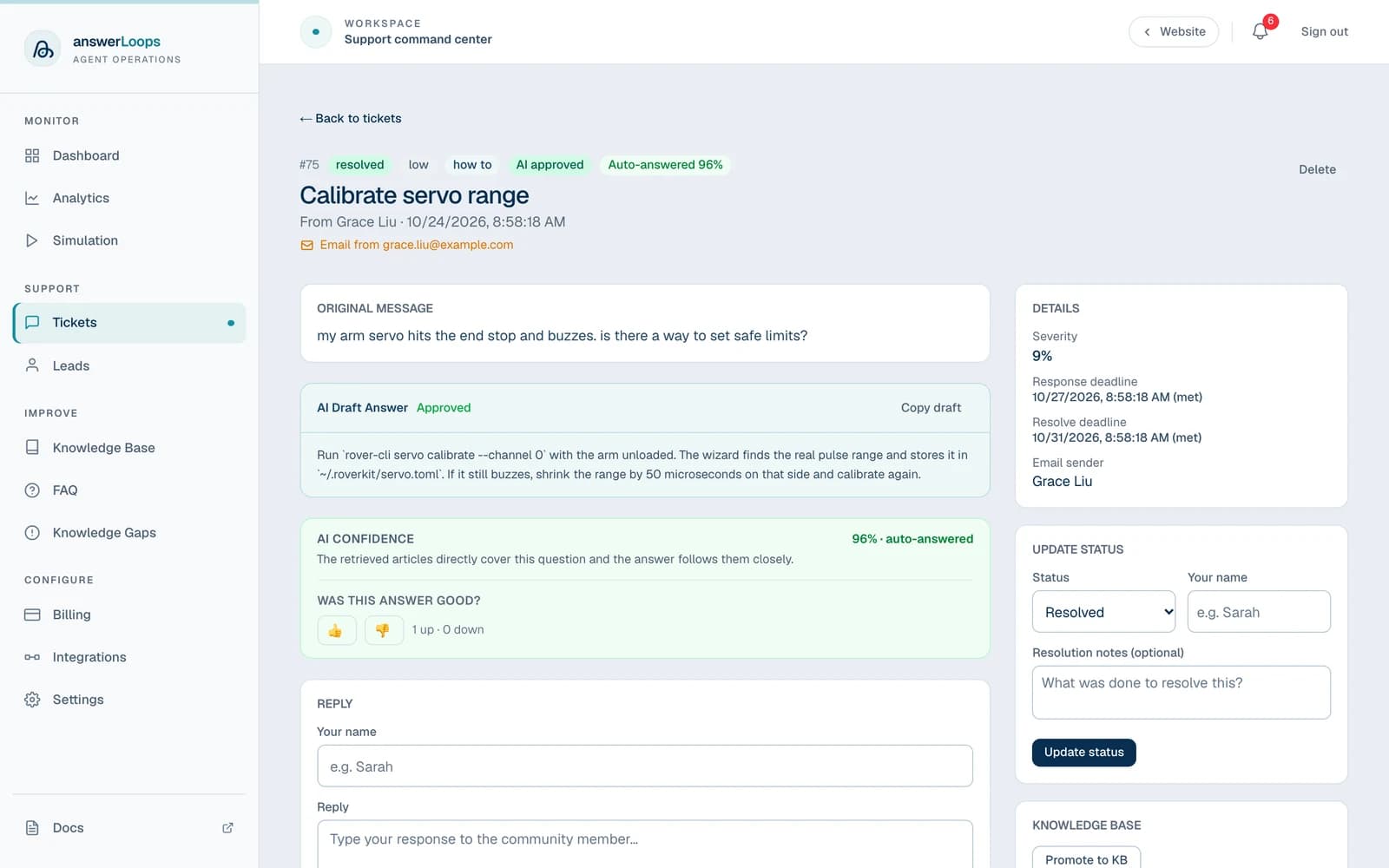
The page has two columns. On the left is the conversation: the Original Message, the AI Draft Answer, the AI Confidence card, the Conversation (every later message in the thread), and the Reply form. On the right are the Details, Related Questions, Update Status, and Activity panels.
Read the whole conversation
A question is often a conversation, not one message. When someone keeps talking in the same place, their follow-ups join the ticket they belong to instead of opening new ones, and the Conversation section shows every message in order, oldest first. Each message carries its author, the time, and a label:
| Label | Who wrote it |
|---|---|
| Customer | The person who asked, or anyone else who joined in. |
| Staff | A member of your team, replying from the dashboard. Each team member who replies appears under the name they entered, in the order they replied. |
| answerLoops | A reply answerLoops posted to the channel: an automatic answer, an acknowledgment that a person will follow up, or an AI draft a team member approved or edited and sent. |
| Maintainer | A maintainer's message, kept so the thread reads completely. It never opens a ticket or sends a notification. |
What counts as "the same conversation" depends on the channel:
| Channel | A message joins the ticket when it is |
|---|---|
| Slack | A reply in the same thread. |
| Discord | A reply inside a thread that already has a ticket. |
| Google Chat | A reply in the same space thread. |
| Telegram | A reply to the opening message or to any reply already in the thread. |
| Discourse | A post in the same topic. |
| Circle | A comment on the same post. |
| GitHub | A comment on the same issue or discussion. |
| A reply in the same email conversation, from the address that opened it. | |
| Agent | Not applicable. Each call is its own question. |
Because every message is kept, a ticket that several people answered reads as one history: the customer's question, what answerLoops replied, each team member's reply, and the customer's follow-ups, in the order they happened. An answer that was held as a draft and never sent does not appear; it stays in the AI Draft Answer panel until someone approves it. Replies and answers sent before this was recorded are not added to the Conversation of older tickets.
A follow-up on a resolved or closed ticket reopens it. Your team is notified of each follow-up, and the AI does not re-answer them. On Slack, Google Chat, Telegram, GitHub, Discourse, and Circle, a short follow-up like "thanks, that worked" is kept when it continues a conversation you already have. Delivering the same message twice never adds it twice.
Jump back to the original message
A link under the title takes you to the question on its own platform:
- GitHub: Issue owner/repo#123 ↗ or Discussion owner/repo#45 ↗, the issue or discussion itself. A ticket opened by a comment shows the number of the issue or discussion it was written on. The same reference appears under the source badge in the Tickets list.
- Discord: View in Discord ↗
- Slack: View in Slack ↗
- Telegram: View in Telegram ↗
- Discourse: View in Discourse ↗
- Circle: View in Circle ↗
- Email: shows the sender's address
If the original Discord message was deleted, the ticket says so and keeps its content.
See related questions
Related Questions lists earlier tickets that are similar, with a match percentage. When an earlier ticket matches at 85% or more, the new ticket is flagged as a likely duplicate with the Asked N× badge. Open the match to reuse its answer, or mark the newer ticket duplicate from Update Status.
Review an AI draft
For most tickets the AI has already written a draft by the time you open it. What happens next depends on how confident the AI reviewer was. A high-confidence draft can be sent to the customer automatically, when Automatic Deflections is on for that channel. Anything else waits for you.
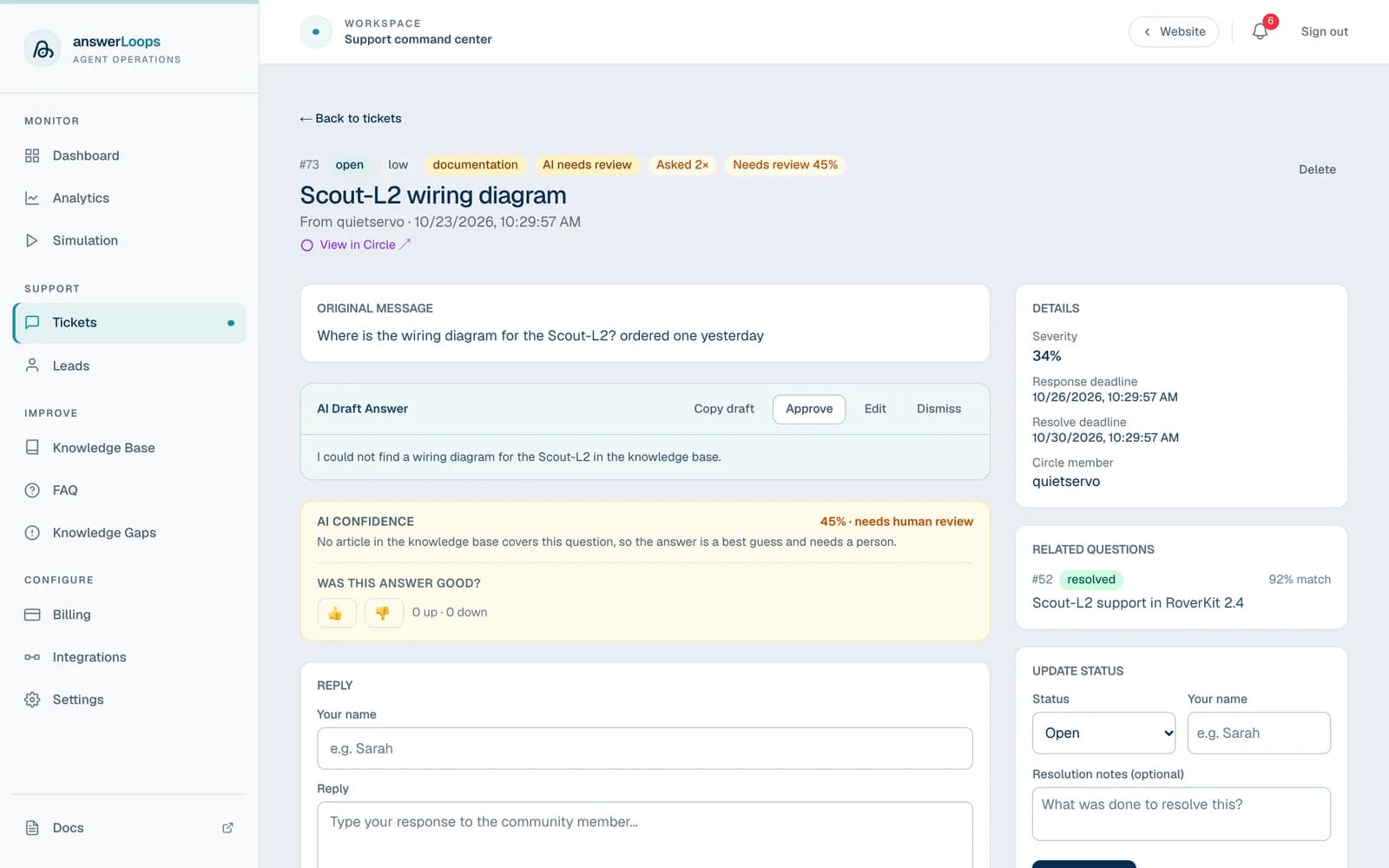
The AI Draft Answer panel shows the draft. The AI Confidence card underneath shows a percentage and a short explanation of the score.
- Approve posts the draft as it is to the source platform.
- Edit opens the draft in a text field. Save & post sends your edited version.
- Dismiss hides the draft without posting anything. The ticket's status does not change.
- Copy draft copies the text, useful when you want to paste it somewhere yourself.
Under Update Status, pick the new status, enter your name, add optional resolution notes, and select Update status.
If Automatic Deflections is off for the channel, nothing is sent to the customer even when the AI is confident. The confidence card says so, and the draft waits for you to approve it or reply by hand.
See which articles the draft was given
Owners and admins also see a Sources panel under the draft. It lists the knowledge-base articles that were supplied as context for it, in order, and whether each is still current, has changed since, is unpublished or was deleted. See Sources behind an answer.
Reply in your own words
The Reply form sends a message back to the person who asked. Enter your name and your message (up to 2,000 characters). The button names the destination:
| Source | Button |
|---|---|
| GitHub | Send reply to GitHub |
| Discord | Send reply to Discord |
| Slack | Send reply to Slack |
| Telegram | Send reply to Telegram |
| Discourse | Send reply to Discourse |
| Google Chat | Send reply to Google Chat |
| Send reply by email | |
| Circle, Agent | Save reply (records the reply on the ticket) |
Replies go to the original thread on the source platform, not only into answerLoops. Circle tickets are ingest-only, so copy the answer into Circle yourself. For tickets opened by an AI agent there is no chat channel, so the reply is saved on the ticket for the agent to read through the API.
Turn a good answer into knowledge
On a resolved or closed ticket that has an answer, the Knowledge Base panel offers Promote to KB. It turns the question and answer into a searchable article so the next person gets it instantly. Only owners and admins can promote. Once promoted, the panel links to the article instead.
When a ticket has no draft
A ticket sent to a person without a draft shows a notice in place of the draft, and the notice says why.
| Notice | Why | What to do |
|---|---|---|
| You've reached this month's AI limit | Your plan's included AI usage for the month is spent. | Add your own AI provider in Settings → AI Model, or wait for the limit to reset next month. |
| You've reached your trial AI limit | The AI usage included in your trial is spent. | Add your own AI provider in Settings → AI Model. |
| AI drafting is paused because there's no active plan | The workspace has no active trial or plan. | Choose a plan in Billing. |
| We couldn't draft a reply for this ticket | AI was unavailable when the ticket arrived. | Nothing. A team member reviews the ticket. |
| Bug reports and feature requests aren't answered automatically | The ticket was classified as a bug report or feature request. These are never answered from the knowledge base, because the fix or feature may not exist yet. | Nothing. A team member reviews it. |
| This email is on hold because we couldn't verify the sender | An inbound email could not be matched to a verified sender, so it waits for a person. | Review it before replying. |
| No AI draft was generated for this ticket | An older ticket, created before the reason was recorded. | Nothing. |
Only the first three notices need anything from you. The others are expected behavior.
How the AI handles each category
answerLoops classifies each ticket as it arrives. If classification is not possible (for example, no AI provider is available), the Category column stays blank and the ticket is handled as a general question.
| Category | Used for |
|---|---|
how_to | Step-by-step usage questions |
documentation | Requests to clarify or find docs |
bug | Reports of broken behavior |
feature_request | Suggestions for new functionality |
general_question | Everything else that is a genuine question |
Category changes what the AI does next:
how_to,documentation,general_question: answered from your knowledge base. A separate review grades the draft, and it is posted automatically only when confidence is high enough and Automatic Deflections is on. Otherwise it waits for a person.bug,feature_request: never answered from the knowledge base, because the fix or feature does not exist yet, and never graded for confidence. The AI instead works down this list and stops at the first match:- The same report already exists. If a very similar earlier ticket exists, it replies that the team is already tracking it, with that ticket's number.
- A workaround exists. If the knowledge base has a relevant answer, it posts it clearly labeled as a workaround, not a fix.
- Neither. It acknowledges the report and routes the ticket straight to a person. No generated answer is posted.
These automated replies follow the same Automatic Deflections setting as every other reply. When it is off for a channel, they are saved as drafts for you to approve and nothing is posted.
Export your tickets
Owners and admins can select Export CSV in the filter bar to download every ticket in the workspace as a comma-separated file. The export does not follow the filters on screen. It includes ID, status, priority, category, summary, content, author, created date, and resolved date.