
Telegram
Connect a Telegram bot to answerLoops so questions in your group chats get AI-drafted answers and show up in your ticket list.
Your community
 answerLoops
What happens next
To connect Telegram to answerLoops you need a bot token, issued by @BotFather when you create your bot — paste it into Integrations → Telegram and answerLoops handles the rest, no OAuth and no platform-wide credential required.
Overview
answerLoops connects to Telegram through a bot you create and control — there's no shared platform-wide bot and no OAuth flow. Every message sent to the bot in a monitored chat (10+ characters, from a real user rather than another bot) is ingested as a ticket. A message sent as a reply to a message that already has a ticket (or to a reply already in its conversation) is added to that ticket's Conversation instead, even when it is shorter than 10 characters. The bot replies in the same chat when AI confidence is above your threshold and Automatic Deflections is turned on; otherwise the answer is held as a draft on the dashboard and the chat gets no reply.
Because the bot is per-organization, the token you generate with @BotFather is stored encrypted in your answerLoops database — it's never shared with other orgs, and self-hosted deployments don't need a platform-wide credential to make Telegram work. answerLoops never displays a saved token back to you in full — the Bot Token field shows only the last 4 characters (e.g. ••••wX9k (connected)) so you can confirm which bot is connected, and typing in it replaces the token rather than editing it.
Automatic Deflections is off by default, same as every other channel. While it's off, even a high-confidence answer is held as a draft on the dashboard awaiting Approve/Edit/Dismiss, and the Telegram chat gets no automatic reply. Turn it on in Integrations → Telegram → Edit → Automatic Deflections → Save once you've reviewed enough approved drafts to trust the AI's answers going out unsupervised.
Self-hosting: make the app reachable
Telegram delivers messages by calling your app, so a self-hosted deployment needs an address Telegram can reach over public HTTPS. Set AUTH_URL to it (for example https://support.yourcompany.com). Addresses like localhost or private hostnames are refused by Telegram. Nothing else is needed from the operator: there is no shared bot, and each organization creates its own below. Skip this section on managed cloud.
Do not point AUTH_URL at a tunnel just to test Telegram locally. AUTH_URL also controls where Google sign-in returns, so changing it breaks login. Set TELEGRAM_WEBHOOK_BASE_URL to the tunnel address instead.
Setup
1. Create a bot with @BotFather
Telegram bots are created by talking to Telegram's own bot, @BotFather, inside the Telegram app — there's no developer portal or web dashboard.
- Open a chat with @BotFather on Telegram
- Send
/newbot - Choose a display name, then a username ending in
bot(e.g.AcmeSupportBot) - BotFather replies with a token that looks like
123456789:AAHdqTcv...— copy it
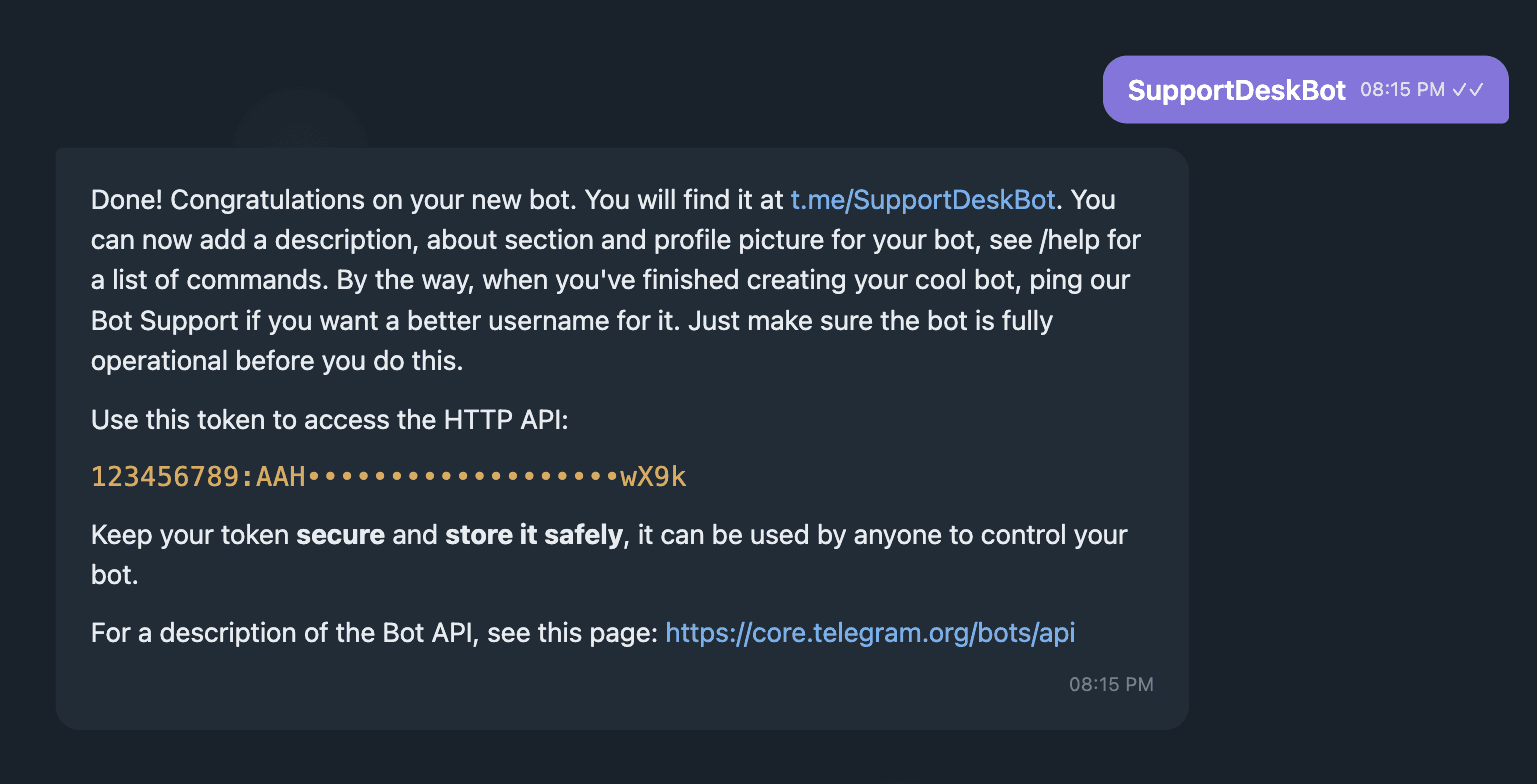
Keep this chat open. You'll come back to BotFather later if you need to change the bot's group privacy settings (see Troubleshooting below).
2. Paste the token into answerLoops
- Go to Integrations → Telegram
- Paste the token into Bot Token and click Connect
answerLoops validates the token's format and calls Telegram's getMe API to confirm it's real before saving it. If it's rejected, double-check you copied the whole string including the part after the colon.
3. The webhook registers itself
Telegram doesn't push messages to you automatically — it has to be told where to send them. Connect does this for you: once the token validates, answerLoops calls Telegram's setWebhook API with your app's public URL (AUTH_URL) and a per-org secret, and Telegram starts POSTing new messages to /api/telegram/webhook. If that call fails (for example AUTH_URL isn't a publicly reachable HTTPS URL), the token is still saved and the card shows a Register webhook button to retry once the URL is fixed.
Once registration succeeds, the card confirms it — a green Webhook registered <timestamp> banner replaces the register prompt, with a Re-register button if you need to trigger it again. Saving a new bot token clears this confirmation, since a new token needs its own setWebhook call before Telegram will deliver to it.
Re-register the webhook (the Re-register button on the Telegram card) any time your public URL (AUTH_URL) changes. Rotating the bot token and re-saving registers it again automatically.
4. Add the bot to a chat and find its chat ID
Add your bot to the Telegram group or supergroup you want answerLoops to monitor (or just message it directly for a 1:1 chat). By default answerLoops listens to every chat the bot is a member of — you only need chat IDs if you want to restrict it to specific chats.
To find a chat ID:
- Add @userinfobot to the group and it will post the chat ID, or forward a message from the group to it
- Group and supergroup chat IDs are negative numbers (e.g.
-1001234567890) — this is normal, not an error
Paste one or more chat IDs, comma-separated (e.g. -1001234567890, -1009876543210), into Chat IDs to monitor on the Telegram card. Leave it blank to monitor every chat the bot is in.
5. Set an escalation username (optional)
If you want a human tagged when the AI isn't confident enough to auto-reply, enter a Telegram username without the @ in Escalation username. It's referenced when a message's confidence score falls below your threshold.
6. Set the confidence threshold
Confidence threshold (0–1, default 0.8) is the score below which an AI answer is treated as low-confidence — held as a draft (or, with Automatic Deflections on, sent along with the escalation mention instead of posted as a full answer).
7. Verify it's working
A registered webhook only proves Telegram can reach your app — it doesn't prove a message actually turns into a ticket. Group privacy mode, the 10-character filter, and a Chat IDs to monitor restriction can all silently swallow a message downstream of a perfectly healthy webhook, so it's worth confirming the full pipeline once rather than assuming setup is done.
Message the bot directly — a 1:1 DM skips privacy-mode filtering entirely, so it's the fastest way to rule that variable out. The message needs to be 10+ characters and come from a real account, not another bot.
Within a few seconds a new ticket should appear in the dashboard's Tickets list. Since Automatic Deflections is off by default, the AI's answer sits there as a draft awaiting Approve/Edit/Dismiss — the Telegram chat itself gets no reply yet, which is expected, not a failure. If no ticket appears at all, see Troubleshooting below.
Environment variables reference
Telegram is configured per-organization through the Settings UI — there's no bot-wide credential required to make it work. Replies are always sent through the bot token the organization saved in Settings; there is no deployment-wide bot token. The variable below is optional.
| Variable | Required | Description |
|---|---|---|
TELEGRAM_WEBHOOK_BASE_URL | No | Overrides AUTH_URL for the Telegram webhook only. AUTH_URL also drives the OAuth callback host, so the two need different values whenever the app is reached at a different origin than the public tunnel — e.g. developing locally with the app on localhost while exposing the webhook through ngrok. Falls back to AUTH_URL when unset, which is correct for every normal deployment. |