
Knowledge Base
Import, manage, and search your knowledge base so the AI can deflect questions accurately.
The knowledge base is the material answerLoops answers from. When a question arrives, answerLoops searches your articles for the ones closest in meaning and hands them to the AI as reference material for the reply. Better, fresher articles mean more questions the AI can answer on its own.
Open Knowledge Base from the Improve group in the sidebar. The page has three tabs: Manage (add and organize content), Knowledge coverage (see what the assistant can answer from), and Review (turn unanswered questions into articles).
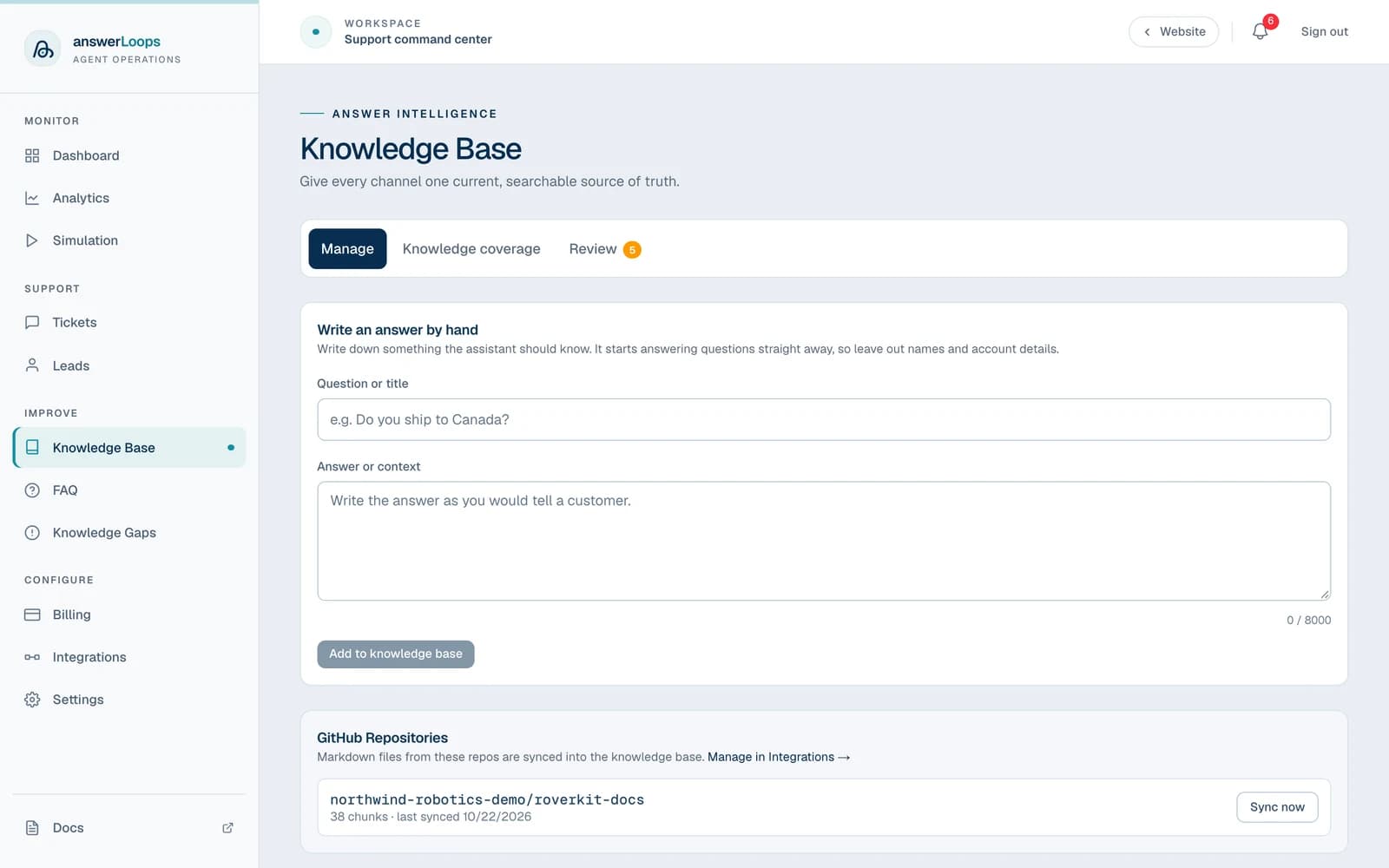
The Manage and Knowledge coverage tabs are available on every plan. The Review queue needs the Pro plan or above. Self-hosted deployments have every feature unlocked.
How it fits together
- You add content. Import a web page or site, upload a file, sync a GitHub repository or a Notion workspace, write an answer by hand, or promote a resolved ticket.
- answerLoops makes it searchable. Each source is split into sections. Each section becomes one article, and every article is converted into an embedding, a numeric fingerprint of its meaning, so it can be found by meaning rather than exact words.
- The assistant draws on it. For each question, the closest articles are passed to the assistant as reference material. This works the same whether the question arrives through the widget, a channel, email, or the Agent API and MCP
generate_answer. - You close the gaps. Questions the knowledge base could not answer land in Knowledge Gaps and the Review queue, ready to become new articles.
On a hosted plan, creating embeddings works without your own AI key, using your workspace's included AI usage. If you reach this month's limit, the import stops with a message asking you to add your own provider under Settings → AI Model.
Add content
Pick the method that matches where your knowledge already lives. Importing, uploading, and syncing are for owners and admins.
Best for a public help center or documentation site. Importing reads each page, splits it by its headings, and saves each section as an article.
On the Manage tab, find the Import from URL panel.
Paste a public http or https address, such as https://docs.example.com.
Choose Single page to import only that address, or Entire site to follow links across the site (up to 25 pages per run).
Click Import and wait. Larger sites take longer, and a progress message tells you what stage it is in.
Each page becomes its own entry in the Sources list. When you import a URL again, pages already imported are skipped and only new ones are processed, so you can safely re-run a site import after adding new docs. If a run stops short of the whole site, the result message tells you to click Import again to continue.
A section whose exact text is already in your knowledge base is left out, and the result message says how many were skipped. See Exact duplicates.
If the address cannot be found, the import stops with a message asking you to check it. If an import fails before anything is saved, no source is left behind, so you can simply run it again.
Self-hosted operators must configure the URL import service. See environment variables.
GitHub and Notion syncs run as background jobs. The Manage tab shows each one as Queued, then Syncing with a progress count, then done, and you can leave the page while it runs. Starting a sync for a source that is already syncing does nothing; the running job finishes on its own. Each sync builds its replacement alongside your live content and swaps it in only when complete, so a failed sync leaves your existing content in place.
Write an answer by hand
Not everything the assistant should know comes from a document. Product details, policies, and "how we actually do it" answers often live in someone's head. The Write an answer by hand form at the top of the Manage tab lets you write them down directly.
Enter a Question or title, such as "Do you ship to Canada?"
Write the Answer or context the way you would tell a customer.
Click Add to knowledge base.
The article is published immediately, with no draft step, so anything you write is visible to customers through the assistant. Leave out names, account details, and anything internal. If you want a second pair of eyes first, use the Review queue instead.
Only workspace owners and admins can add articles this way. The title can be up to 500 characters and the answer up to 8,000. Each article is indexed when it is saved, so adding needs an AI provider; if none is connected, the form tells you to add one in Settings → AI Model. Adds are limited to 30 every 10 minutes per workspace.
Promote a resolved ticket
When a ticket is resolved with a good answer, turn it into an article so the AI can reuse that answer for similar questions.
Open a ticket that is resolved and has an answer.
In the Knowledge Base panel on the ticket, click Promote to KB.
The question and answer are saved as a new article, and the panel changes to In knowledge base.
Only owners and admins can promote tickets, and promoting shares the same 30-per-10-minutes limit as writing by hand. A promoted article lists the ticket it came from, and it appears on the Knowledge coverage tab under Promoted from resolved tickets.
Find and manage articles
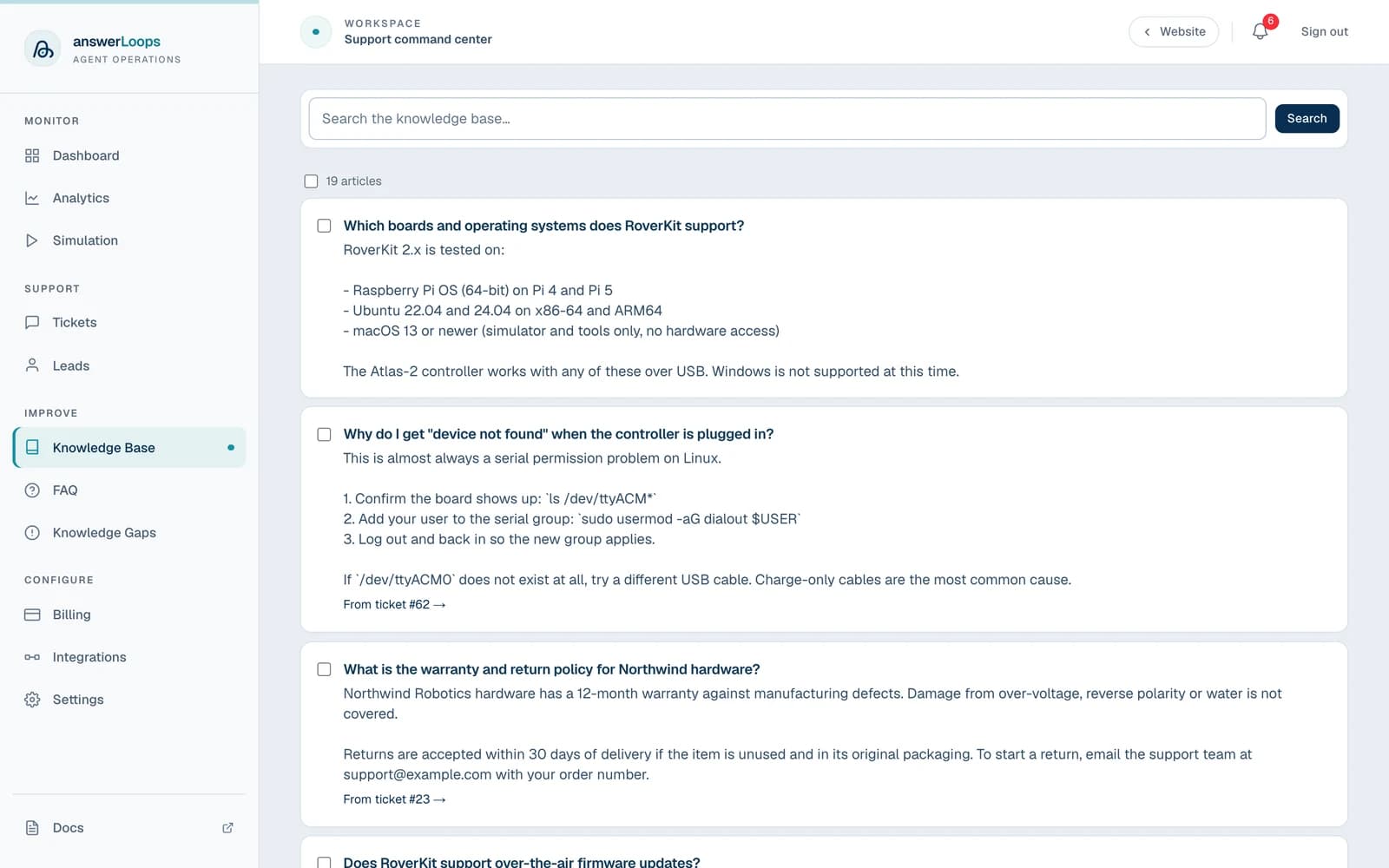
Search looks for articles by meaning rather than exact words. Asking "how do I reset my password" surfaces an article titled "Account recovery steps" even though the words differ, and each result shows a match percentage. To return to the full list, click the × in the search field or Clear.
If semantic search is unavailable, for example because no AI provider is connected or the provider's key is invalid, search falls back to exact text matching and an amber banner reads Keyword search only.
The Sources list shows everything you imported. Each row has a type tag (url, pdf, docx, md, txt, csv, github, github-discussion, or notion), the file name, page address, or repository, and a count of chunks and size. A source marked Unpublished is indexed and searchable from the dashboard but held back from customer-facing answers and the website widget.
Exact duplicates
An article is an exact duplicate of another when its question and its answer are the same words. Line breaks, extra spaces, and trailing whitespace are ignored, so a re-wrapped copy still counts. Anything else is a different article: a changed word, different capitalisation or punctuation, or the same title over a different answer.
- Uploads, URL imports, and articles written by hand never add an exact copy of an article already in the workspace. An import leaves that section out and reports how many it skipped. If every section of a file was already there, nothing is added and the message says so. Adding an article by hand shows This exact question and answer is already in the knowledge base.
- GitHub and Notion syncs are not checked, because each page keeps its own place in its source. If a sync does bring in text that already exists elsewhere, the assistant is still protected, as described next.
- The assistant is never given the same article twice. When it looks for the closest articles, exact copies count once, so a repeated article cannot push a different, relevant one out of the top results.
- Copies that already exist stay until you delete them. Older imports can have created them. The ticket Sources panel lists an exact source once and notes how many identical copies were supplied, which tells you where a duplicate is hiding.
To remove content, tick one or more sources or articles, click Delete selected, and confirm. Deleting a source also deletes the articles imported from it. Only owners and admins can delete.
See what the assistant knows
The Knowledge coverage tab shows exactly what your chat assistant can answer from, so nobody is surprised by what it does or does not know. It is also linked from Settings → Widget.
- Counts. Live articles, Sources, Unpublished, and Not searchable.
- Titles by source. Every article title, grouped by where it came from: each file or imported page, synced sources, Promoted from resolved tickets, and Added by hand.
- Status per article. An article is live when it is published and searchable. Unpublished articles are kept private and the assistant does not use them until you publish them, which suits internal documents. Not searchable articles have no search index entry, usually because embedding failed during import, or they were indexed with an embedding model other than the one your workspace uses now. Articles on an older model are re-indexed automatically after you switch models; for a failed import, re-import the source.
- Try a customer question. Type a question and click Check. The tab runs the same lookup the chat widget uses and shows which articles the assistant would draw on, with a match score, or tells you that nothing covers it. If semantic search is unavailable, it says so instead of guessing.
- Supplied as context. Next to each article, how often it was handed to the assistant (details below).
If a question does not closely match any live article, the assistant answers from general knowledge instead, and that answer can be wrong. Use this tab to find those gaps before your customers do, then add or edit an article to cover them.
Review queue
The Review tab turns questions your knowledge base could not answer into new articles, with a person checking every one before it goes live. It requires the Pro plan or above and is visible to owners and admins only, because items contain text typed by customers and visitors. Other team members see a short notice.
When the assistant answers a question that nothing in your knowledge base (or your team's earlier answers) covered, the question lands in the queue instead of disappearing:
- Support tickets from your connected channels are added after the assistant has replied, so capturing a question never delays an answer. If the assistant's draft fully answered the question, it comes along as a starting point. If not, the item is marked No usable answer — write one and you write it.
- Website chat widget questions are added when no article matched. The queue shows the question and the answer the assistant gave, never the visitor. Email addresses, phone numbers, and long digit runs are replaced with markers before the text is stored, and widget items are labelled as visitor-supplied text.
When the same question comes in again, the existing item's counter goes up (Asked 4 times) instead of adding a duplicate, and the most-asked questions are listed first.
Open the Review tab. The To review list shows pending items; Approved and Rejected show past decisions.
Edit the Question and the Answer. Remove names, account details, and anything else that was only meant for the person who asked.
Click Approve and add to knowledge base. The text is saved as a new article and starts answering questions straight away. Or click Reject to dismiss it; a rejected item can be moved back to review with Move back to review.
Nothing in the queue is searchable or shown to customers until you approve it. The Review tab shows how many items are waiting. Each workspace holds up to 500 unreviewed items at a time; when the queue is full the tab says so and new questions are not captured, so clear it regularly.
Finding old saved resolutions
Every saved resolution, meaning an article written from a ticket, shows when it was last saved, for example Saved 11/5/2026 · 3 months ago. The date moves when the resolution is edited or refreshed from its ticket again.
On the Manage tab, use Sort to switch between Newest saved first and Oldest saved first, and tick Saved resolutions only to hide articles that came from files, pages and synced sources. Sorting oldest first puts the resolutions most likely to be out of date at the top, so you can re-check them and use Verify again on the ones that still hold. Both controls apply to the full list. While you are searching, results stay in order of how well they match.
When documentation changes under a saved resolution
When a connected GitHub repository syncs and some of its documentation was added, rewritten or removed, answerLoops looks for saved resolutions about the same subject. A resolution that is close in meaning to a changed piece of documentation shows a notice such as Docs related to this answer changed after it was saved (acme/docs, 11/5/2026), so you can check whether the answer still holds.
Nothing is hidden or deleted for you. The notice clears when you verify the resolution again or save it again from its ticket. A sync that changes nothing leaves resolutions alone, and so does the first sync of a repository. Related means similar in meaning, not an exact match, so a notice is a prompt to look, and some will turn out to be fine.
Verifying an article
An article can be marked as verified: an owner or admin checked it and found the answer still correct. On the Manage tab, each article shows where it stands, always in words:
- Never verified. Nobody has checked it. Every article starts here, including every article that existed before verification was introduced.
- Verified on a date by a person. Someone checked it, and its question and answer have not changed since.
- Changed since last verified. It was verified, but its question or answer has been edited or refreshed since, so the check no longer applies. Verifying it again clears this.
To verify an article, choose Mark as verified (or Verify again) and add an optional note, for example the product version you checked it against. The note can be up to 500 characters.
A few things to know about what verification means:
- Verification applies to the exact wording that was checked. Any change to the words, whether by a person, a ticket refresh or a sync, makes the article read as changed since last verified. Reflowing text or adding trailing whitespace is not a change.
- Imports and syncs never verify an article and never clear a verification on their own. A page rewritten by a sync with new content simply reads as changed since last verified.
- Age alone never makes an article wrong. A verification of unchanged text stays valid however old it is, and verification has no effect on whether the assistant uses an article.
- If the person who verified an article is later removed from the team, the date and note stay and the name is dropped.
- Each verification is also recorded in the article's history.
Sources behind an answer
Owners and admins can see which articles were supplied to an answer, and which answers an article was supplied to. Both views say supplied as context: the assistant decides what to use, so being listed does not mean the reply quoted or relied on an article.
On a ticket
Below a ticket's AI draft, the Sources panel lists the articles that were supplied for that draft, in the order they were given. Each one shows where it stands now:
| Status | What it means |
|---|---|
| Current | The article is unchanged since the answer was generated. |
| Changed since | The article was edited or re-synced after the answer, so it may now say something different. |
| Unpublished | The article is no longer live, so the assistant cannot use it now. |
| Deleted | The article no longer exists. |
Articles that are live link to their place in the knowledge base. If identical copies of one article were supplied, the panel lists it once, links it once, and notes how many identical copies were also supplied. A draft that failed still lists what was supplied to it, and says it failed. Tickets drafted before this was added, and drafts older than 90 days, show no panel.
On an article
On the Manage tab, choose Show recent answers under an article to see the answers it was supplied to in the last 90 days: where each was given (the website chat widget, a support ticket draft, Discord, or the Agent API), when, whether it was generated or failed, and the article's position in the order. An answer given when the article read differently says The article has changed since this answer. Only the metadata is stored, so no question or answer text appears.
More details
Never run docker compose down -v. The -v flag deletes all Docker volumes, which permanently removes your KB articles, tickets, and all other data. Use docker compose down (without -v) to stop the stack safely.