
Team
Invite teammates and manage workspace membership.
Bring your colleagues into the workspace so they can answer tickets, review AI drafts, and keep the knowledge base current. Owners and admins manage the whole team from Settings → Team: invite people, see who has access, and remove or hand over ownership when things change. Team management is included on every plan.
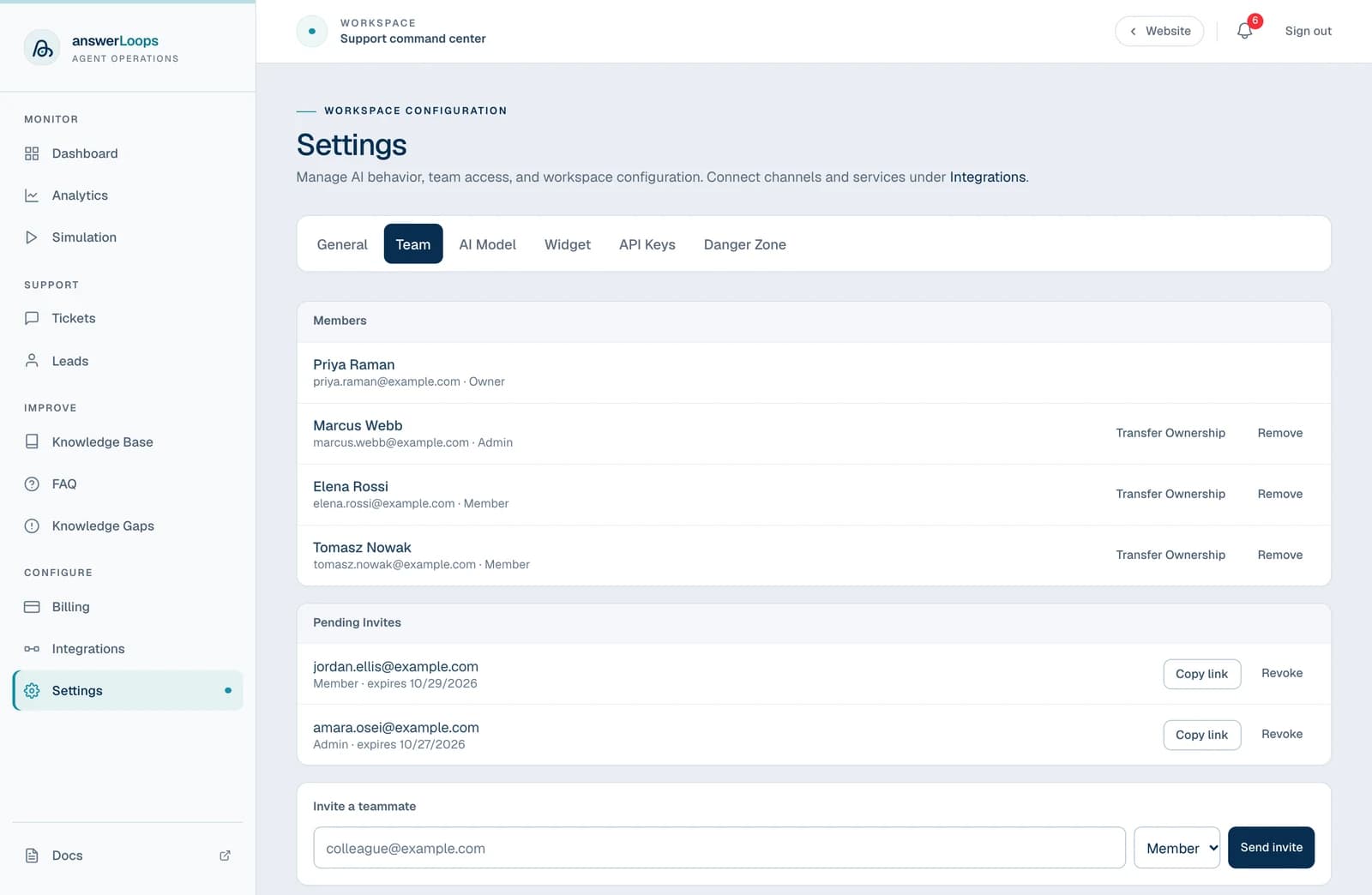
The screenshot shows a demo workspace with fictional people.
Invite a teammate
Open the Team tab
Go to Settings → Team.
Enter their details
Under Invite a teammate, enter the person's email address and choose Member or Admin.
Send the invite
Click Send invite. The invitation link is copied to your clipboard automatically, so you can paste it straight into a message. If the person is already a member, you will see a message saying so instead.
Ask them to accept
Ask the recipient to open the link and sign in with the invited email address. They join as soon as they select Accept invitation.
Where email delivery is configured, answerLoops also emails the invitation. Invitations are valid for 7 days, and sending a new invitation to the same address replaces the earlier pending one. If you lose the link, copy it again with Copy link under Pending Invites.
The new person appears in Members after accepting, and the list updates on its own, without a refresh.
Choose the right role
| Role | Purpose | Who can grant it |
|---|---|---|
| Owner | Holds workspace ownership and can transfer it to another member. | Transfer from the current owner only |
| Admin | Manages workspace settings and membership. | Owners |
| Member | Works with support tickets and workspace content. | Owners and admins |
Give administrative access only to people who need to manage the workspace. Invitations cannot create another owner; use ownership transfer instead.
Manage invitations
Pending Invites appears whenever invitations are waiting. Each row shows the email address, the role, and the expiry date.
- Copy link: copies the invitation link so you can resend it.
- Revoke: cancels an invitation that should no longer grant access.
Remove a member
Find the person in Members and choose Remove. Their membership is removed straight away. A few rules apply:
- The owner cannot be removed. Transfer ownership first when the current owner is leaving.
- You cannot remove yourself.
- Only an owner can remove an admin.
Transfer ownership
Choose the new owner
As the current owner, select Transfer Ownership beside another member. The button appears only when the workspace has at least one other member.
Confirm
Check the name in the dialog, then select Yes, transfer ownership.
You become a regular member and lose owner privileges. This cannot be undone unless the new owner transfers ownership back to you.